Keycloak is open source and self-hostable, which makes it a natural fit if you are already self-hosting DMARC Analyzer. Read how SSO fits together first if you have not — this page is only the Keycloak-specific half.
Keycloak supports a PKCE client with no client secret to store, rotate or leak. Keycloak’s own default leaves one gap worth closing yourself, covered below.
Create a realm
In the Keycloak admin console, Manage realms → Create realm.
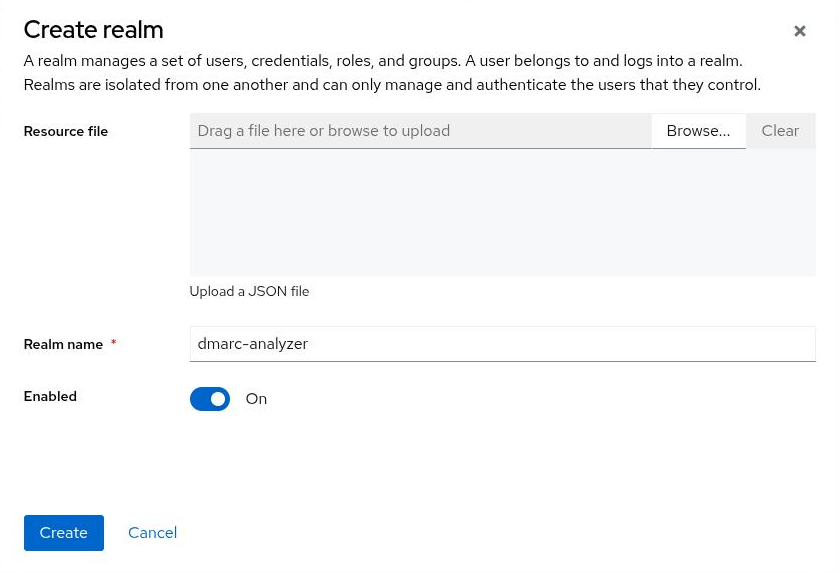
A realm is a fully isolated set of users, clients and roles. Give the app its
own — dmarc-analyzer here — rather than adding its client to master,
which is for administering Keycloak itself.
Register the client
Inside the new realm, Clients → Create client. The wizard has three steps that matter.
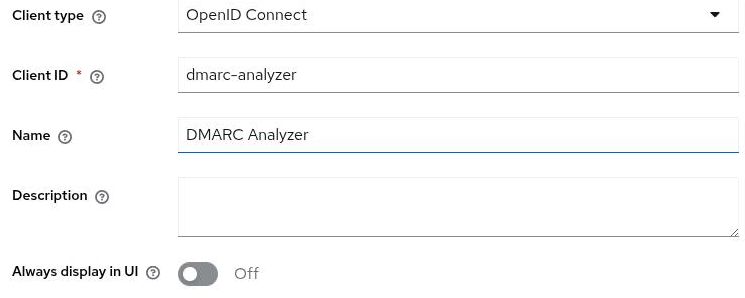
General settings — a Client ID and, optionally, a display name:
Capability config — leave Client authentication off and Standard flow checked (that’s a public client using the authorization code flow), then turn Require PKCE on:
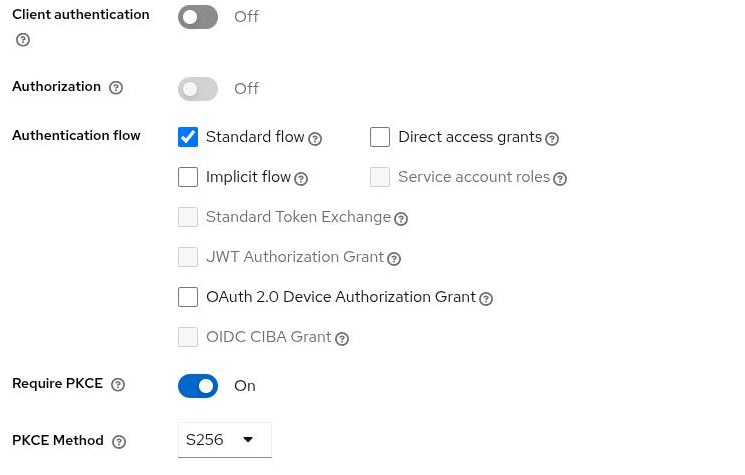
This one default is worth overriding. Keycloak ships new clients with
Require PKCE off, flagged with its own warning icon, even when Client
authentication is also off. A public client with neither a secret nor
enforced PKCE is weaker than either alone. Leave PKCE Method at S256.
Login settings — the redirect URI:
https://dmarc-analyzer.agency.tld/api/v1/auth/oidc/callback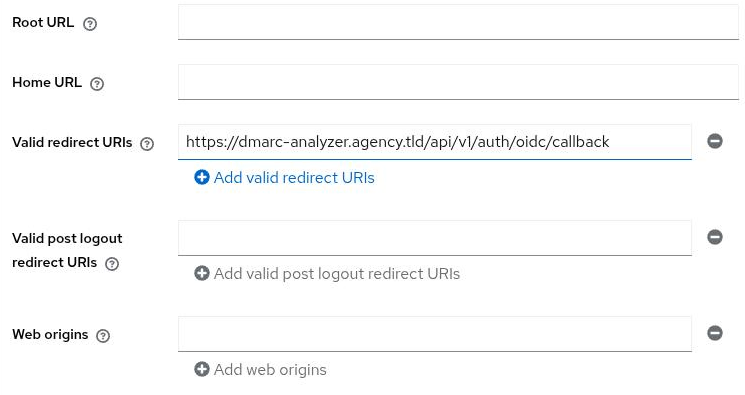
There is no development-mode flag to enable first — Keycloak validates a
redirect URI by matching the string you register, http:// included, so
nothing extra is needed even for a local test.
Copy the client ID
Once created, the client’s Settings page shows the ID — and, because it’s a public client, there is no Credentials tab to check for a secret:
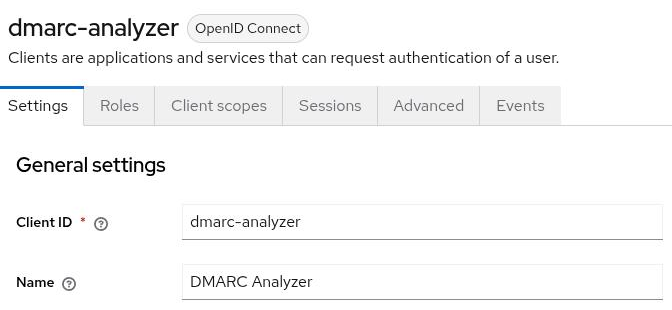
The client ID is not a secret — it travels in every sign-in redirect.
Configure DMARC Analyzer
environment:
  Auth__Oidc__Enabled: "true"
  Auth__Oidc__Authority: "https://keycloak.agency.tld/realms/dmarc-analyzer"
  Auth__Oidc__ClientId: "dmarc-analyzer"
  Auth__Oidc__DisplayName: "Keycloak"
  Auth__Oidc__AutoProvision: "false"
No ClientSecret line — the app only sends one if you configure one, and a
PKCE client has nothing to send. Authority is the realm’s own base URL,
which is also what its /.well-known/openid-configuration reports as
issuer — check that first if sign-in fails at the very first redirect.
Restart and the login page gains the button. What happens on the first sign-in is the same for every provider.
Behind a reverse proxy, set
Network__UseForwardedHeaders. Without a trust list the app does not believeX-Forwarded-Proto, so it builds anhttp://redirect URI that no longer matches what you registered. See running behind a reverse proxy.
If a new user sees an unexpected profile screen
Keycloak’s default realm requires a first and last name on every account. Leave them blank when creating a user and their first sign-in shows an “Update Account Information” prompt asking for both — harmless, but easy to mistake for something broken in the app rather than in Keycloak. Fill both fields in when creating the user to skip it.
Troubleshooting
redirect_uri mismatch — the registered URI and the one the app builds
differ, exactly and including scheme. If the app is sending http:// for an
HTTPS site, that is the forwarded-headers setting above, not Keycloak.
no_account — authentication worked but no local user matched, with
AutoProvision=false. Create the account first, at the same address
Keycloak holds for that user, with Email verified turned on.
email_not_verified — the app links an SSO identity to an existing
local account only on a verified email. Turn on Email verified for the
user in Keycloak.
The button never appears — Auth__Oidc__Enabled is not true, or the
app did not restart. Check GET /api/v1/auth/providers.
Trying it locally
The repository’s development stack ships a Keycloak container for exactly
this, with a walkthrough in
docs/ops/oidc-keycloak.md.
Against a plain-HTTP local instance you will also need
Auth__Oidc__RequireHttpsMetadata: "false" — never in production.