Sign operators in with their Microsoft work accounts, while DMARC Analyzer keeps deciding what each of them may see. Read how SSO fits together first if you have not — this page is only the Entra-specific half.
Requires 0.7.1 or newer. Entra returns its authorization response in a way that older versions could not accept, and every login failed with
Correlation failed. See troubleshooting if you are pinned to an older release.
Throughout, dmarc-analyzer.agency.tld stands in for your own hostname.
Before you start
- DMARC Analyzer reachable over HTTPS at a hostname Entra can redirect a
browser back to. Plain HTTP works only for
localhost. - Permission to register an application in your tenant — Application Developer is enough; you do not need Global Administrator.
Register the application
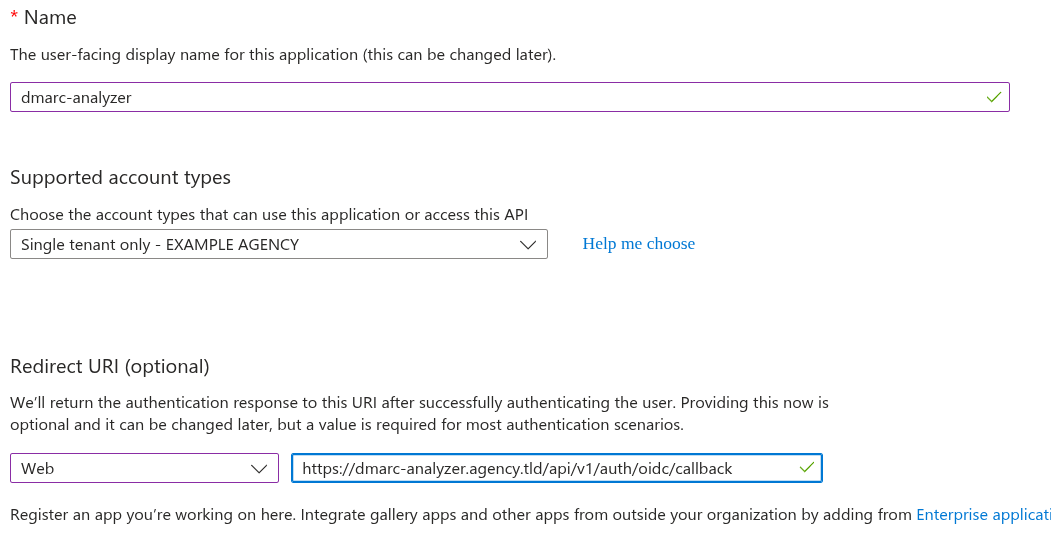
In the Entra admin center, go to Entra ID → App registrations → New registration.
-
Name —
dmarc-analyzer, or whatever your operators should see on the consent screen. -
Supported account types — Accounts in this organizational directory only, unless you deliberately want guests from other tenants.
-
Redirect URI — platform Web, value:
https://dmarc-analyzer.agency.tld/api/v1/auth/oidc/callback
The platform matters as much as the URL. Web is what makes this a confidential client, which is the shape the app expects; registering the same URL as a single-page application instead will fail at the token exchange.
The path ends in /callback. You may also see /api/v1/auth/oidc/complete in
logs or the address bar — that is an internal hop after Entra has returned, and
registering it here produces a redirect_uri mismatch.
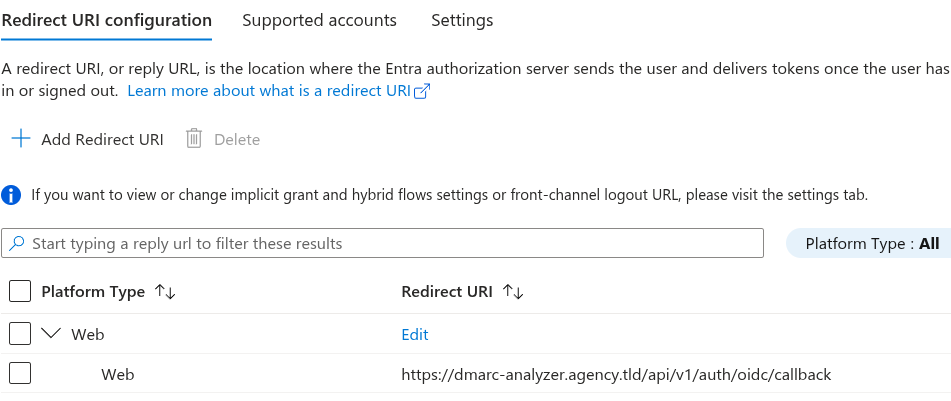
Afterwards the Authentication blade lists what you registered. One Web entry is all this needs:
Copy the client and tenant IDs
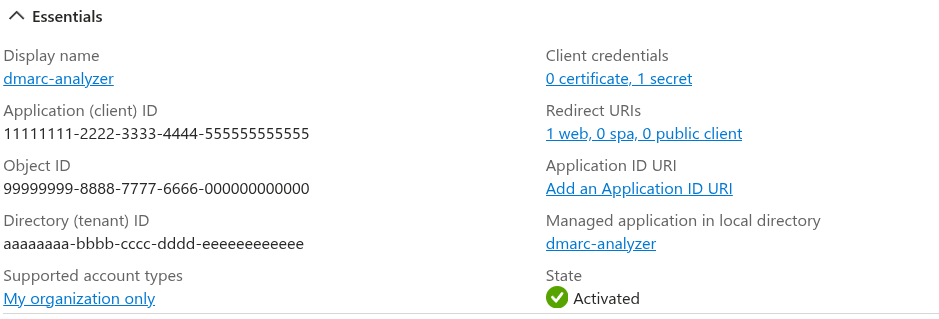
The Overview blade has both values the app needs.
-
Application (client) ID →
Auth__Oidc__ClientId -
Directory (tenant) ID → goes into the authority URL:
https://login.microsoftonline.com/<tenant-id>/v2.0
Use the /v2.0 endpoint. The v1.0 issuer advertises different claims, and the
xms_edov claim the next section turns on is v2.0
only.
Neither ID is a secret — both travel in every sign-in redirect.
Add a client secret
Entra requires one. Because the redirect URI is registered under the Web
platform, Entra treats the app as a confidential client and demands a secret at
the token exchange no matter what else is configured — PKCE, which the app
always uses, does not remove the requirement. Without a secret the login fails
with AADSTS7000218.
Go to Certificates & secrets → Client secrets → New client secret.
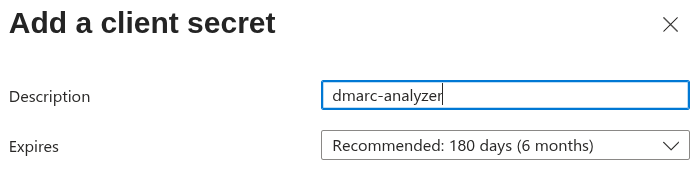
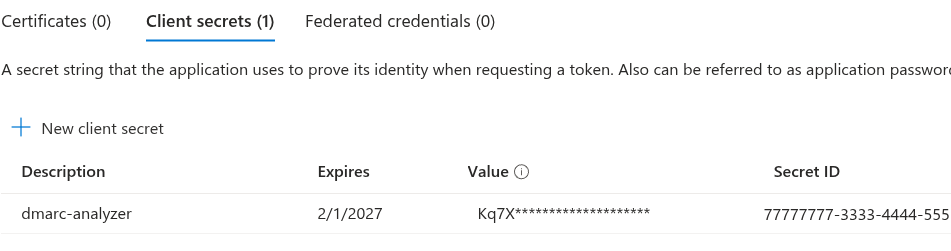
Copy the value immediately. Entra shows it once; navigate away and it is gone and you must create another. Put it straight into wherever your deployment keeps secrets — a Kubernetes Secret, or a file that is not your values file.
Note the expiry date. A secret has a maximum life of two years and the default is six months; when it lapses, every SSO login stops at once. Set a reminder, and prefer a certificate over a secret if you have the tooling for it.
Add the optional claims
Do not skip this. Without it, anyone who already has a DMARC Analyzer account is refused at their first SSO login, with a message saying their email could not be verified — and nothing is wrong with their email.
DMARC Analyzer attaches an SSO login to an existing local account by email, and
only when the provider vouches for the address. Otherwise a provider that lets
people type any address into their profile could be used to walk into an
administrator’s account. Most providers answer that with the standard
email_verified claim. Entra never sends it, for any account type: the
attributes behind its email claim are editable and not uniformly verified, so
Microsoft declines to assert what it cannot back.
What Entra offers instead is xms_edov — “email domain owner verified” —
which says the address sits in a domain your tenant has proven it owns. DMARC
Analyzer treats it exactly like email_verified.
Go to Token configuration → Add optional claim, choose token type ID,
and add both email and xms_edov. If xms_edov is not in the list,
add it under Manage → Manifest:
"optionalClaims": {
  "idToken": [
    { "name": "email", "essential": false },
    { "name": "xms_edov", "essential": false }
  ]
}
Add email even if sign-ins already carry one — without it the app has nothing
to match an account against and refuses with no_account.
On 0.8.1 or earlier,
xms_edovis ignored and every Entra user with an existing account is refused. Upgrade to 0.9.0 or newer, which is where it is read. If you cannot add the optional claim at all — no access to the registration, or a policy against manifest edits — 0.9.0 and newer also haveAuth__Oidc__TrustUnverifiedEmail, which accepts a provider that says nothing. It still refuses one that says “not verified”, and it is only safe on a single-tenant authority like the one above: on/common, any tenant anywhere could then assert any address.
Leave public client flows off
Under Authentication → Settings, leave Allow public client flows disabled.
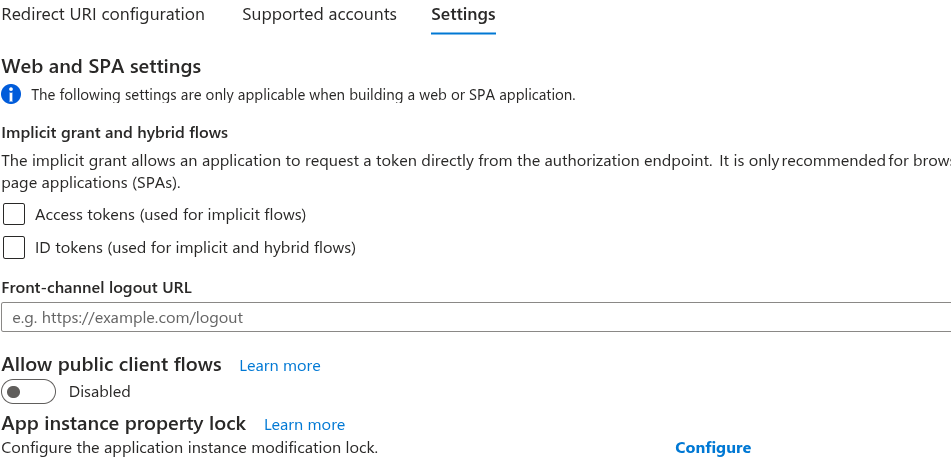
It is tempting when you would rather not manage a secret, but it enables device-code and other native-app flows; it does not make a Web-platform registration secretless. Leave the implicit grant checkboxes clear too — the app uses the authorization code flow.
Configure DMARC Analyzer
environment:
  Auth__Oidc__Enabled: "true"
  Auth__Oidc__Authority: "https://login.microsoftonline.com/<tenant-id>/v2.0"
  Auth__Oidc__ClientId: "<application-client-id>"
  Auth__Oidc__ClientSecret: "<the secret you just copied>"
  Auth__Oidc__DisplayName: "Microsoft"
  Auth__Oidc__AutoProvision: "false"
DisplayName is the label on the login button, so write it for whoever reads
it. Full option list in the configuration
reference.
Restart and the login page gains the button. What happens on the first sign-in is the same for every provider.
Behind a reverse proxy, set
Network__UseForwardedHeaders. The app builds its redirect URI from the incoming request, and without a trust list it does not believeX-Forwarded-Proto— so it sendshttp://to Entra, which refuses it. See running behind a reverse proxy.
Troubleshooting
Correlation failed, and the log names a missing .AspNetCore.Correlation.*
cookie. You are on 0.7.0 or earlier. Those versions let the OIDC handler ask
Entra for a form-post response, which arrives as a cross-site POST that carries
no SameSite=Lax cookie, so the correlation cookie the app set moments earlier
was never sent back. It reads like a cookie or proxy problem and is neither.
Upgrade to 0.7.1 or newer.
AADSTS7000218 — no client secret. See above.
redirect_uri mismatch — the registered URI and the one the app builds
differ. They must match exactly, including scheme and any trailing path. If the
app is sending http:// for an HTTPS site, that is the forwarded-headers
setting, not Entra.
“Your identity provider did not say whether this email address is verified”
— Entra sent no email_verified and no xms_edov, so the app would not open an
existing account on an address nobody vouched for. Add the optional
claims. The server log names both claims it looked
for. On 0.8.1 or earlier this appears as “your email address is not verified”
instead, which sends you looking at the mailbox; nothing is wrong with the
mailbox.
“Your identity provider reports this email address as unverified” — a real
denial, not silence: xms_edov came back false, meaning the address is in a
domain your tenant has not proven it owns. Verify the domain in Entra.
Auth__Oidc__TrustUnverifiedEmail deliberately does not override this.
no_account — authentication succeeded but no local user matched, with
AutoProvision=false. Create the account first, using the same address Entra
holds. If Entra is sending no email claim at all, every login lands here — add
it as an optional claim.
The button never appears — Auth__Oidc__Enabled is not true, or the app
did not restart. Check GET /api/v1/auth/providers.